Cool Master
This guide explains how to set up the Cool Master device and enable seamless control of HVAC devices/systems in the Loft App.
Step 1: Download Cool Master Tool
To set up the Cool Master device, you first need the Cool Master Automation Setup Tool.
Click the download button below to get the tool:
Download
Step 2: Locate Tool and Interface
After installing the tool, its icon may appear on your desktop as "SetupUtility".
If not, navigate to the following path using File Explorer:
C:\Program Files\CoolAutomation
Inside the CoolAutomation folder, locate "SetupUtility" (Type: Application).
This is an executable file that runs on Windows Operating Systems.
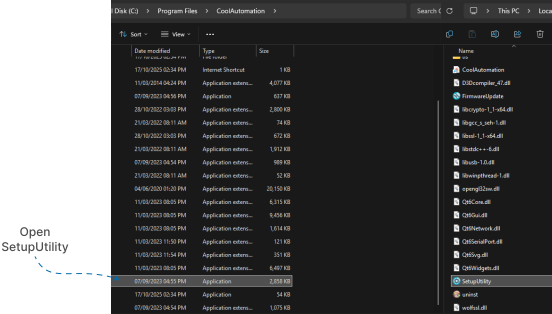
When you open it, the tool interface appears similar to the image shown below.
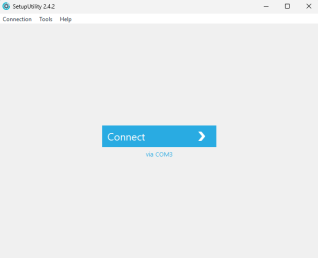
Step 3: Connect the Cool Master Device
- Power on your Cool Master device.
- Connect your Cool Master device to your PC/laptop using the supplied USB cable.
- If this is your first connection, the USB driver will install automatically.
- Connect the Ethernet cable to your Cool Master device.
- Ensure your PC/laptop and Cool Master device are connected to the same network via Ethernet.
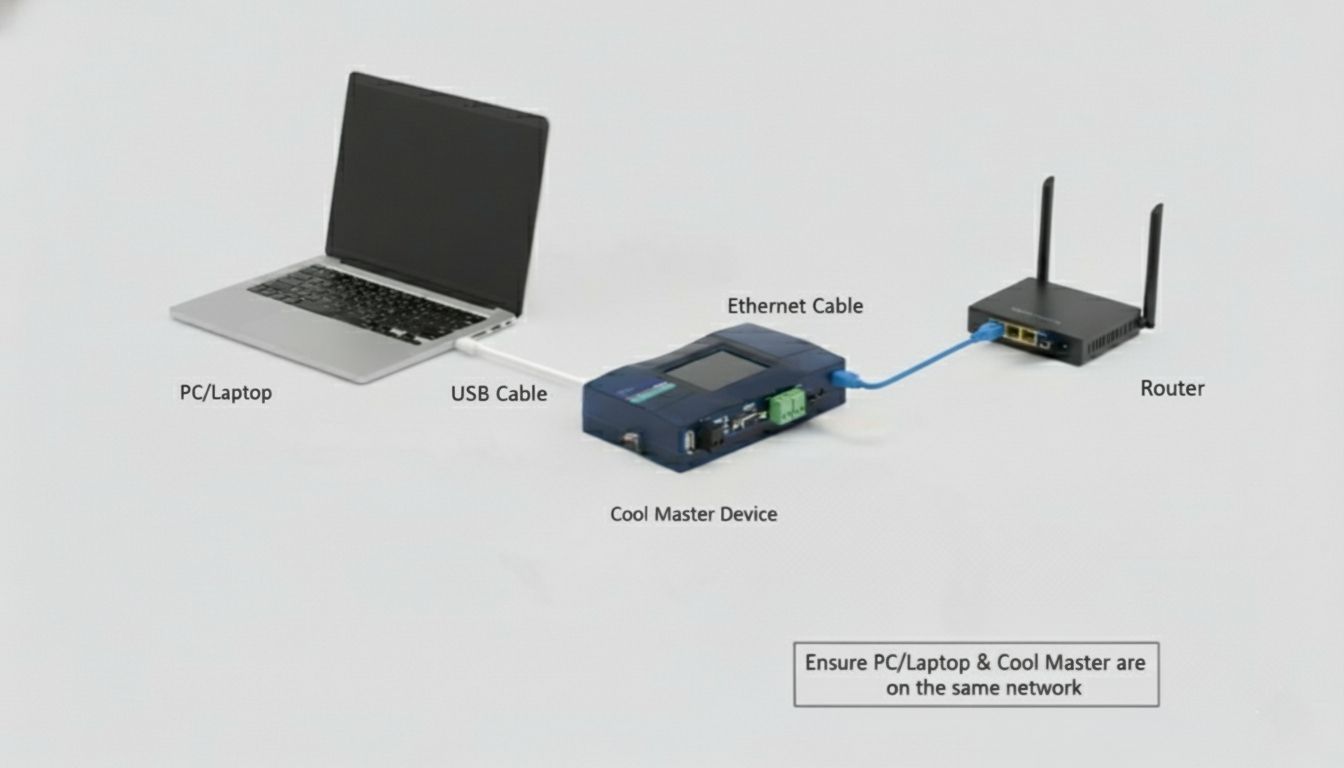
Step 4: Run the Tool and Complete Setup
After completing the physical connections, run the Cool Master Setup Utility Tool.
Identify COM Port
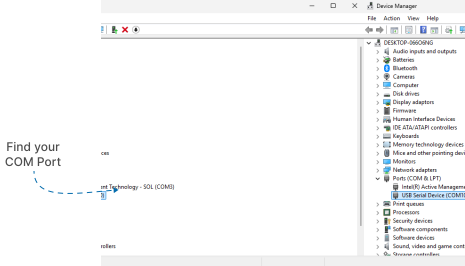
Before connecting, you must know the COM Port assigned to your Cool Master (USB) device — this is essential for using the Cool Master Setup Utility Tool.
- Open Device Manager on your PC/laptop.
- Expand the Ports (COM & LPT) section.
- Plug in your Cool Master device.
- Locate your USB device from the list and note down its COM Port number (e.g., COM3, COM4).
Establish Connection in the Tool
- Open the Setup Utility Tool.
- Click on Connection option shown at top left corner.
- In the COM Port dropdown, select your correct COM Port number.
- Click Connect.
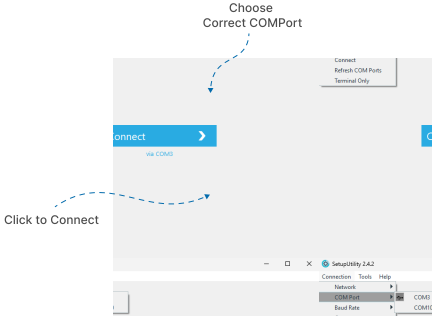
Once connected, the tool interface will activate.
Configure the Terminal
- Go to the Terminal tab.
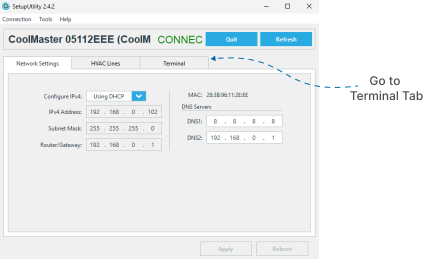
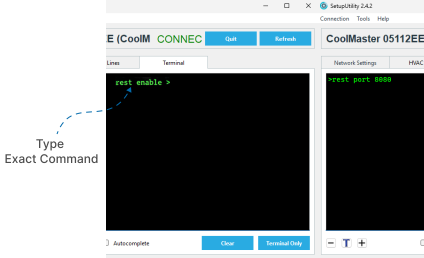
- Type the following command:
rest enablethen Press Enter.
- After Type the following command:
rest port 8080Press Enter.
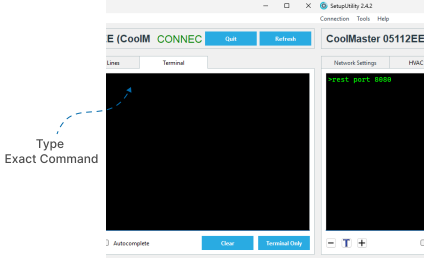
A message will appear: "OK, Boot Required!"
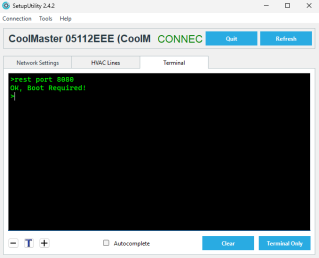
This means you must restart (reboot) the power of your Cool Master device and then power it back on.
After rebooting, your setup is complete, and you can continue configuration in the Loft App Cool Master Gateway.
Note:
If the setup does not complete successfully, try entering the same command again with a different port number (e.g.,rest port 8081,rest port 8082, etc.).
Additional Network Settings
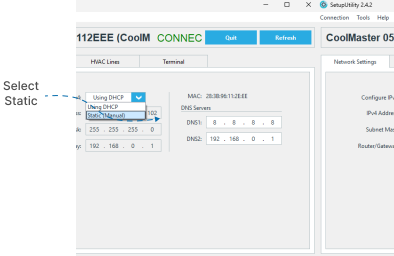
By default, in the Cool Master Setup Utility Tool, IPv4 is configured using DHCP, meaning it automatically obtains an IP address.
If you wish to set a static/manual IP, follow the steps below:
- Navigate to the Network Settings tab.
- In the Configure IPv4 field, you’ll see the option Using DHCP.
- From the dropdown list, change it to Static (Manual).
- Now you can manually enter and save your static IP address and other network details.
✅ Your Cool Master setup is now complete!
You can now proceed to configure and control your HVAC devices seamlessly through the Loft App.